![]() |
It's no secret that when it comes to reflections, the Source Engine comes up a little short handed. If you want a decent reflection then the low-res cubemaps are hardly satisfactory, albeit they were never meant to provide true reflections, merely specular highlights. The water shader provided has the capacity to provide good reflections, but even that is limited as to use it on more than a few faces is going to cause much pain for one's computer. And even then, typically reflective floors such as marble, stone and (to some extent) metal and wood cannot be represented by this shader easily. The technique outlined in this tutorial, however, is not new. It is a rather "old-school" method used in engines that had no support for realtime reflections whatsoever. Seeing as the Source Engine just about fits the bill here I thought it appropriate to outline the method for those of you who aren't familiar. Personally I think it's a nifty trick which comes up with surprisingly good results.
EDIT: There is in fact a way to get a reflective floor using the water shader alone, which is detailed in this tutorial. Throughout my testing, however, I couldn't get it to work in CSS, feel free to try it yourself though.
Before I go into the details of the method, I'd first like to outline the Pro's and Con's of using this method.
| Pros | Cons |
|
|
Now comes the fun part, making it work. The implementation is rather easy, but it assumes that you know all the basics of hammer. At least enough that you can make a simple room.
To Start off with you'll need to create the room which you intend to have a reflective floor. Keep in mind which material you intend to use for the floor, this kind of effect is typical of marble and (sometimes) metal floors. Although it can be used on any floor, in some cases it is not necessary and can look rather stupid (like on dirt or grass for instance). Another thing to note is that to really show off the effect, then you should create a lot of vertical objects such as pillars and supports will make the player notice it better. If you apply it to a wide open area without much furniture then the effect will be pretty much wasted.
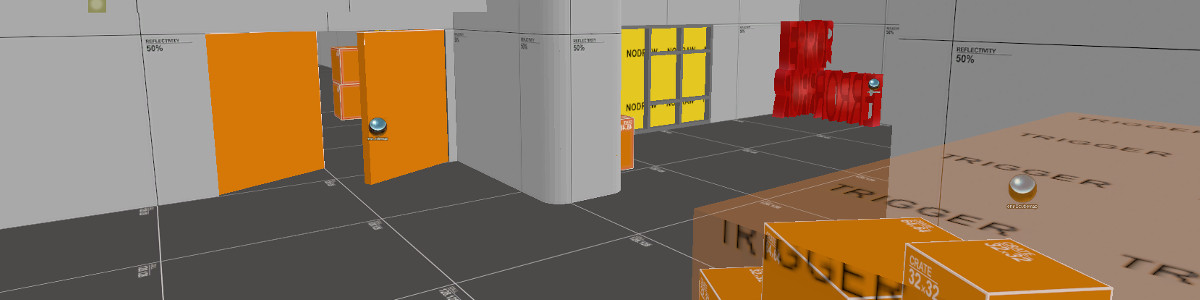
Here's the room I made for the tutorial, its not much buts its homely if anything.
![]() |
And here it is in-game
![]() |
As I said, nothing much, but its enough to demonstrate the effect quite nicely.
Now come the simple matter of mirroring the map. To do this, select all of the brushes and props in the room, excluding things like cubemaps, playerspawns, physics props and, of course, the floor. Now simply copy it so that you have an identical copy below the floor of the original, you can do this using Ctrl+C, Ctrl+V, or you can hold down the Shift key and drag.
Next flip this new room vertically (Ctrl+I), and move it so that the bottoms of the walls touch. The process is illustrated here:
![]() |
Size the floor so that it is 1 unit in height and duplicate it to make three 1 unit thick layers. To the bottom 2 layers, apply the "toolsInvisible" and "toolsBlockLight" textures, so that it resembles this:
These layers are to ensure that the players don't fall through the floor when they die and so that the lights on the reflected side of the map don't shine through into the regular side and vice-versa.
And now here's the tricky part, we need to make it so that the floor is semi-transparent. As per usual there are two ways to achieve this, one being the right way, the other being the lazy way. I'm going to outline both ways in this tutorial, you can decide for yourself which way to use. Needless to say, the right way is harder to do but better in the end.
This method is (as expected) simple to implement. To start, tie the floor (only the topmost layer with the floor texture on it) to a funcbrush. In the funcbrush's properties look for "FX Amount" and "Render Mode". With the "Render Mode" set the "Texture" the "FX Amount" property controls the transparency of the brush. In this case 255 is completely opaque and 0 is completely transparent. You might want to play around a little to get the settings right for the room, in my case I found 180 to be just fine. Tying the floor to an entity, however, is generally a bad idea as it can often lead to physics glitches and leaks.
While this way is technically harder, it should still be no problem for experienced mappers, it does take a little longer but the results, in my opinion, are better. You first need to create a new material for the floor, to do this create a new folder under "cstrike\materials" and name is "reflective". Within this folder create a new material file (.vmt) and give it a relevant name (I called mine "reflective_marble06"). Open up the file an put in the following:
"lightmappedGeneric"
{
"$baseTexture" "texture"
"$translucent" "1"
"$alpha" "alpha"
"$surfaceprop" "material"
}
|
Replace texture with the name of the texture that you were using for the floor.
Replace material with the type of material your floor is made of, for instance for a marble floor put "stone" and for a metal floor put "metal".
Replace alpha with how transparent you want the floor to be, where 1 is opaque and 0 is fully transparent. You should play around with this value until you get something that fits the room, in my case I found that "0.75" did the trick.
Now you merely have to apply the texture to you floor, keep in mind that you will have to restart hammer for it to appear in the texture explorer.
And that's just about it, if you pulled it off correctly then you should have something like this:
![]() |
Not bad is I do say so myself, obviously the effect is more pronounced when you can move around and see it in all its glory. There is however one bug that I noticed whilst making this tutorial which is that the player is able to shoot through the floor and hit the reflection. This is obviously a rather minor error, as the amount of time the player is going to be shooting the floor is minimal, and the effect itself is small enough not to be noticed. If you are feeling picky and really want to solve it then making a 20 unit thick block of "toolsBlockBullets" should do the trick, however I haven't tested this.
Now all you optimization nuts should be baying for my blood right now and I probably deserve it. Of course I didn't mention that the reflected version of the map should be tied entirely to a func_detail. I didn't say this in the tutorial because it is not necessary as such, but it is very good practice to do this regularly. This will, however, cause a leak in the map which can be fixed by bordering the bottom half with "nodraw" blocks.
N.B. This section touches on more advanced topics and as such assumes that you are more experienced For this section you will require:
- Adobe Photoshop (or an equivalent image editor)
- The Nvidia Normal Map Plugin (or an equivalent normal-map filter)
- Nem's Photoshop VTF Plugin (or an equivalent VTF converter)
Now this wouldn't be a real tutorial if all aspects of the effect weren't explored now would it. If you're nit-picky so-and-so like myself, you will have noticed long ago that perfect reflections are few and far between. In fact it took a great deal of time and effort to invent a simple mirror. However the reflections provided by the aforementioned technique are perfectly sharp and correct. If we're going to crunch out realistic reflections, we're going to need to add some blur. Blurring the Reflection Unfortunately for us, its not possible to just blur our maps as we please, the Source Engine just isn't like that, but there is a workaround. Luckily for us the "Refraction" shader provides a limited form of blur in its "$blurammount" variable. All we need to do is create our own refraction texture. To do this first we need to make our own normal and dudv textures. These textures (when used together) define how the light is refracted in the shader. Since we dont want it to refract anything just yet we will need to make blank ones. To do this, make a blank document in Photoshop, then save it as "blankdudv.vtf", making sure you use the "DuDV Map" profile in the VTF plugin. Next apply the normal map filter and save as "blanknormal.vtf", making sure you use the "Normal Map" profile in the VTF plugin. You should now have two textures which look like this:
| Normal | DuDv |
![]() | ![]() |
"Refract"
{
"$model" 1
"$refractamount" "0"
"$bluramount" "1"
"$REFRACTTINT" "{255 255 255}"
"$scale" "[1 1]"
"$dudvmap" "blankdudv"
"$normalmap" "blanknormal"
"$surfaceprop" "material"
"$REFRACTTINTTEXTURE" "texture"
"$translucent" "1"
}
|
![]() |
"$refractamount" "0"
"$dudvmap" "blankdudv"
"$normalmap" "blanknormal"
|
"$refractamount" "0.2"
"$dudvmap" "dev/water_dudv"
"$normalmap" "dev/water_normal"
|
![]() |